Translation workflow
Roles and screens
- Translation management tab (owners, team members, and editors — collectively “admins” below) — creating sheets, sending changes, reviewing, and managing the glossary. Editors can do this within their assigned projects. See Team & roles for role definitions.
- Translation tab (translators) — entering translations and requesting review on assigned sheets. Translators see only this tab.
The full cycle:
- An admin runs Create translation sheet (once)
- When the master changes, an admin runs Send changes
- Translators translate in the sheet (AI drafts available)
- Translators press Done translating
- An admin approves on the review screen — approval applies to the master immediately
- The next Sync brings it to Figma (Figma Sync)
Creating a translation sheet
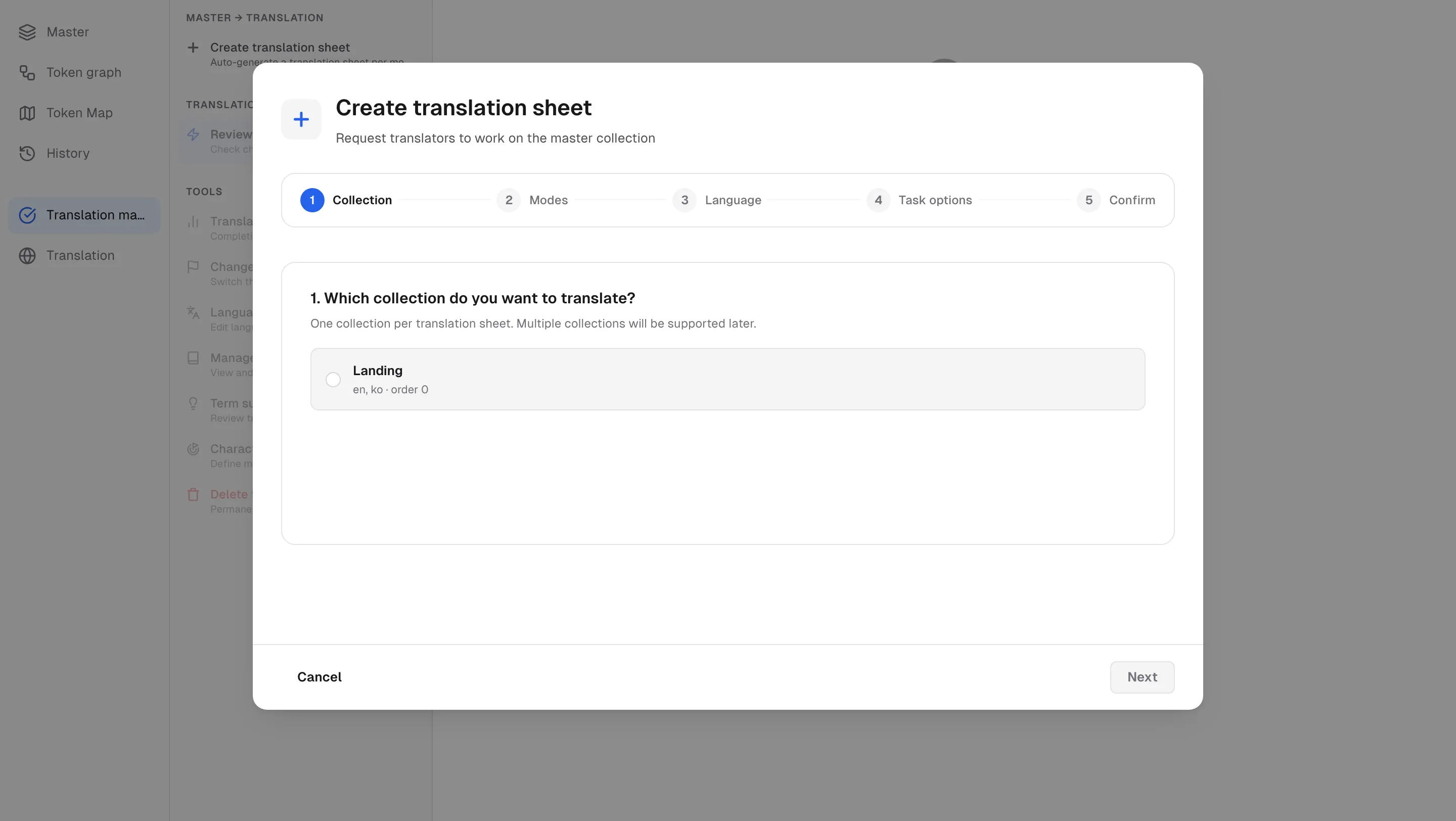
Create translation sheet opens a 5-step wizard: Collection → Modes → Language → Task options → Confirm. For variables that already have values, pick a starting state: Done (accept as-is) / Draft (needs review) / Blank (clear and retranslate).
If your workspace has translators and you’re an owner or team member, a sixth step, Translators, follows — “Translators for this project”. Check the translators who should work on this sheet and pick the languages each one handles:
- Checked translators join this project when you press Create sheet. They can edit only the languages you picked; the other languages are view-only.
- Translators whose invitation is still pending are listed with an Invitation pending badge. You can check them too — they join this project the moment they accept.
- Translators already on the project show Already in project. To remove someone from the project, use the Members page.
You can’t create a sheet while the collection still has variables that diverged from Figma. The wizard shows N unresolved Figma conflicts — “Some variables in this collection have diverged from Figma. Resolve the conflicts first so unconfirmed values don’t end up in the translation sheet.” — and Resolve in master takes you to the master grid to settle them before continuing. Send changes is blocked for the same reason while conflicts remain (see Figma Sync).
Source language
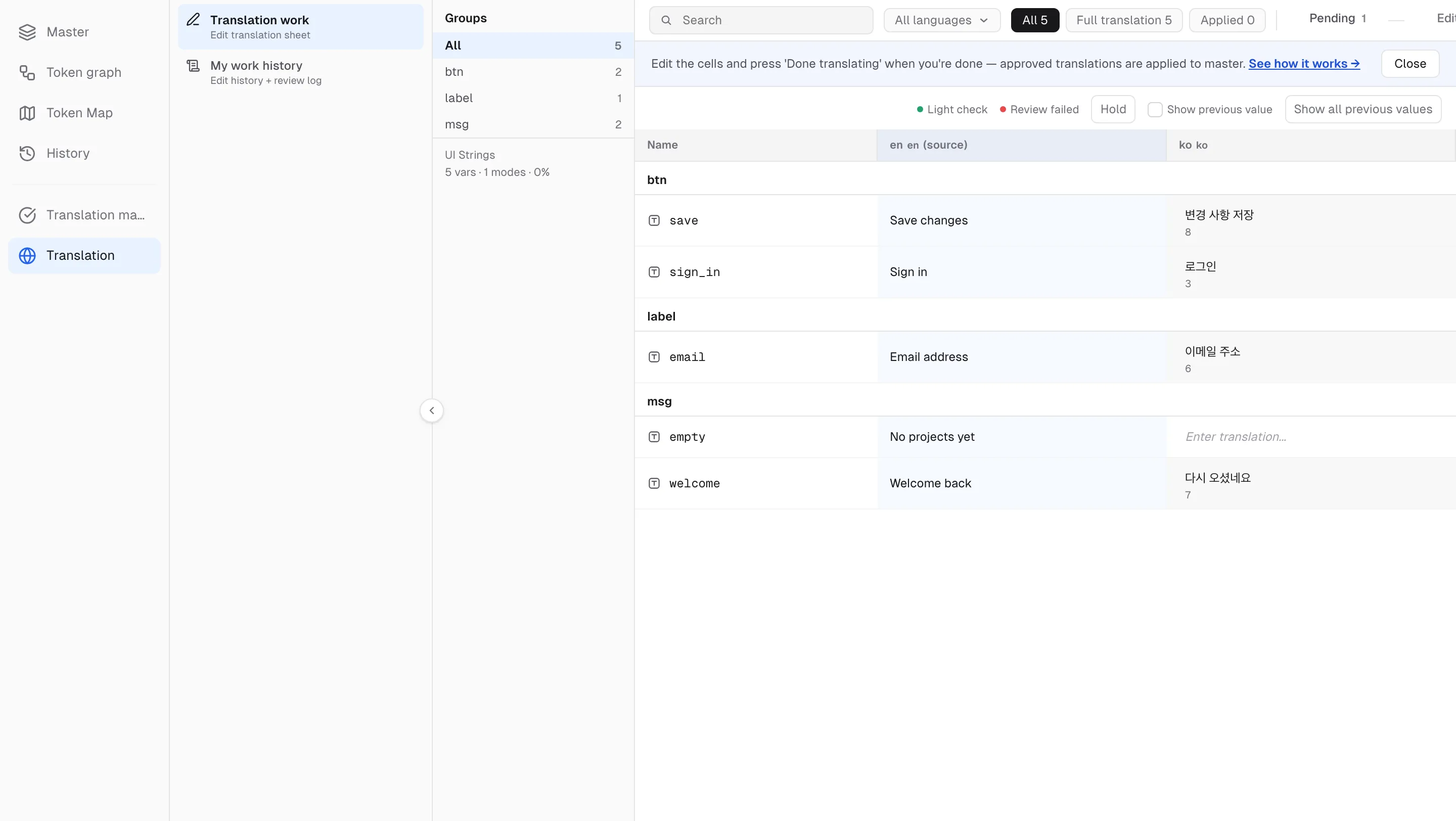
The sheet has a source-language column marked with a (source) badge — the read-only original that translators work from.
- Change source mode switches the source language. Unsent master changes must be sent first, and modes without values can’t be selected.
- Language settings maps each mode to a locale code — AI translation uses this mapping. Locales are inferred from mode names, and picking one is required when sending a newly added mode.
Send changes (master → translation)
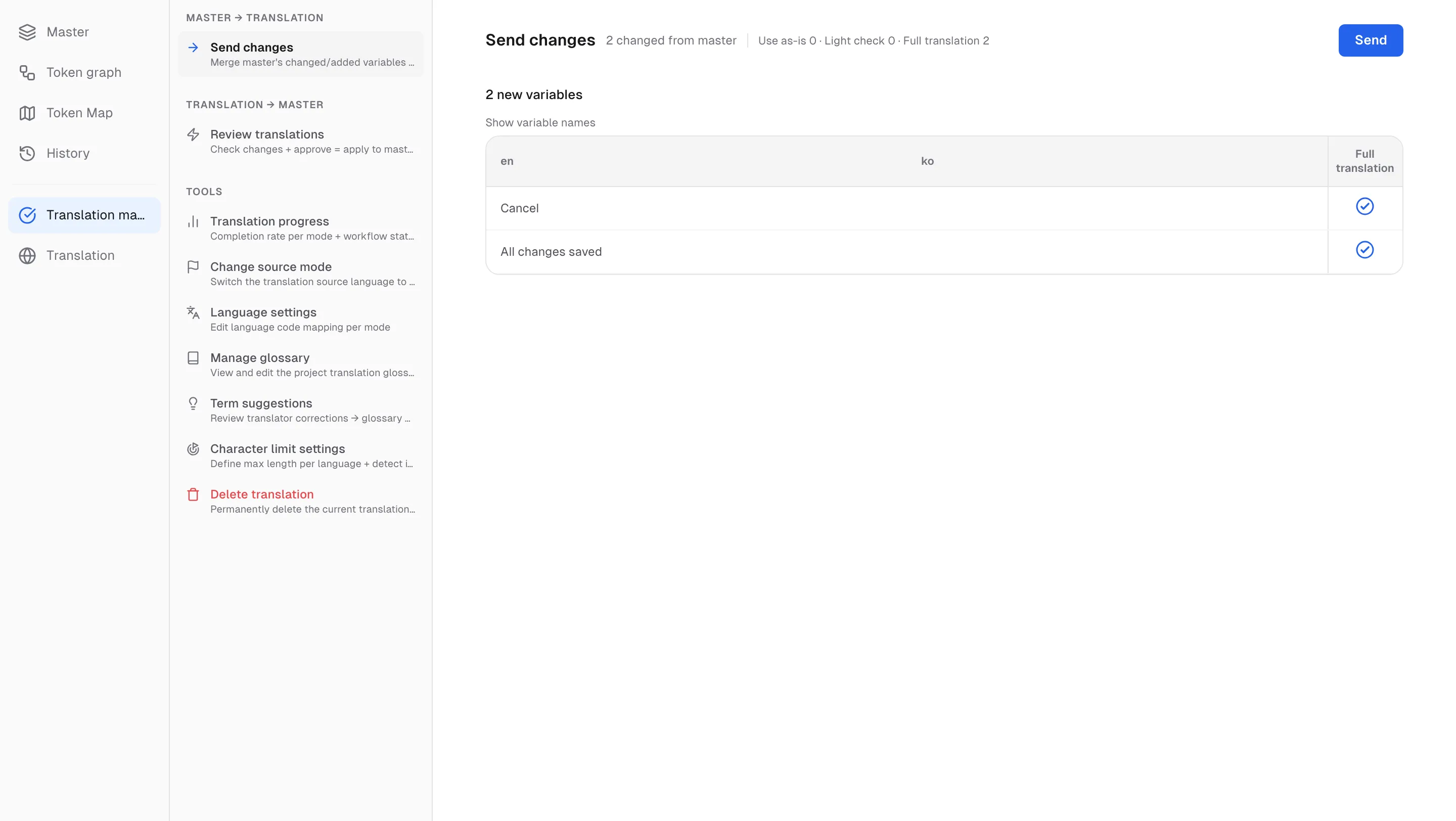
After adding or editing variables in the master, use Send changes to push them to the sheet. For each variable (per mode), assign a task option:
| Option | When | Behavior |
|---|---|---|
| Use as-is | No translation needed (brand names, …) | Copies the master value and completes automatically |
| Light check | An admin pre-filled the value; it only needs a check | Pre-fills the master value for the translator to confirm and adjust (green dot in the sheet) |
| Full translation (default) | A fresh translation is needed | Goes through the translator’s translate → review cycle |
- Shift+click an option cell to apply the same option from the last clicked row through the current one.
- If admins pre-filled values on new variables, the banner’s Set to light check button assigns them in one click.
- Variables whose source-language value is empty are automatically excluded from sending.
- While the collection has unresolved Figma conflicts, Send is disabled — use Resolve in master first.
Working as a translator (the sheet)
- Track your workload with the status chips All / Light check / Full translation / Applied and the progress tabs Pending / Edited / In review.
- Cells whose master value changed again show the latest value. Turn on Show previous value to see the old value on hover, or Show all previous values to pin it under every cell.
- When you’re done, press Done translating — your edited cells move to In review. Cancel review withdraws the request.
- If an admin assigned you specific languages, only those columns are editable. Other language columns carry a View only badge — you can read them for context, but not edit or AI-translate them.
- To fill many cells at once, paste a table: the first row is the name column followed by the language column headers exactly as the sheet shows them, and each row below is a variable’s full name followed by its translations. The full name includes the group path (for example
button/primary/label). Rows are matched by name, so their order and any active filter don’t matter. The result message lists what was applied and what was skipped, and one click on Undo reverts the cells the paste changed. Cells edited again after the paste are left as they are.
AI translation
- The translate button in the sheet toolbar (Translate on Free, AI Translate on Pro workspaces) translates everything, selected rows, or specific languages; hovering a cell shows a per-cell translate icon.
- Drafts are generated with your project glossary applied.
- Limits: Free 60 cells/month, Pro 30,000 cells/month (higher volumes on request). On Free, usage is shown next to the button.
Translation review — approving is applying
Admins process items on the Translation review screen with per-row ✓/✕ or Approve all / Reject all.
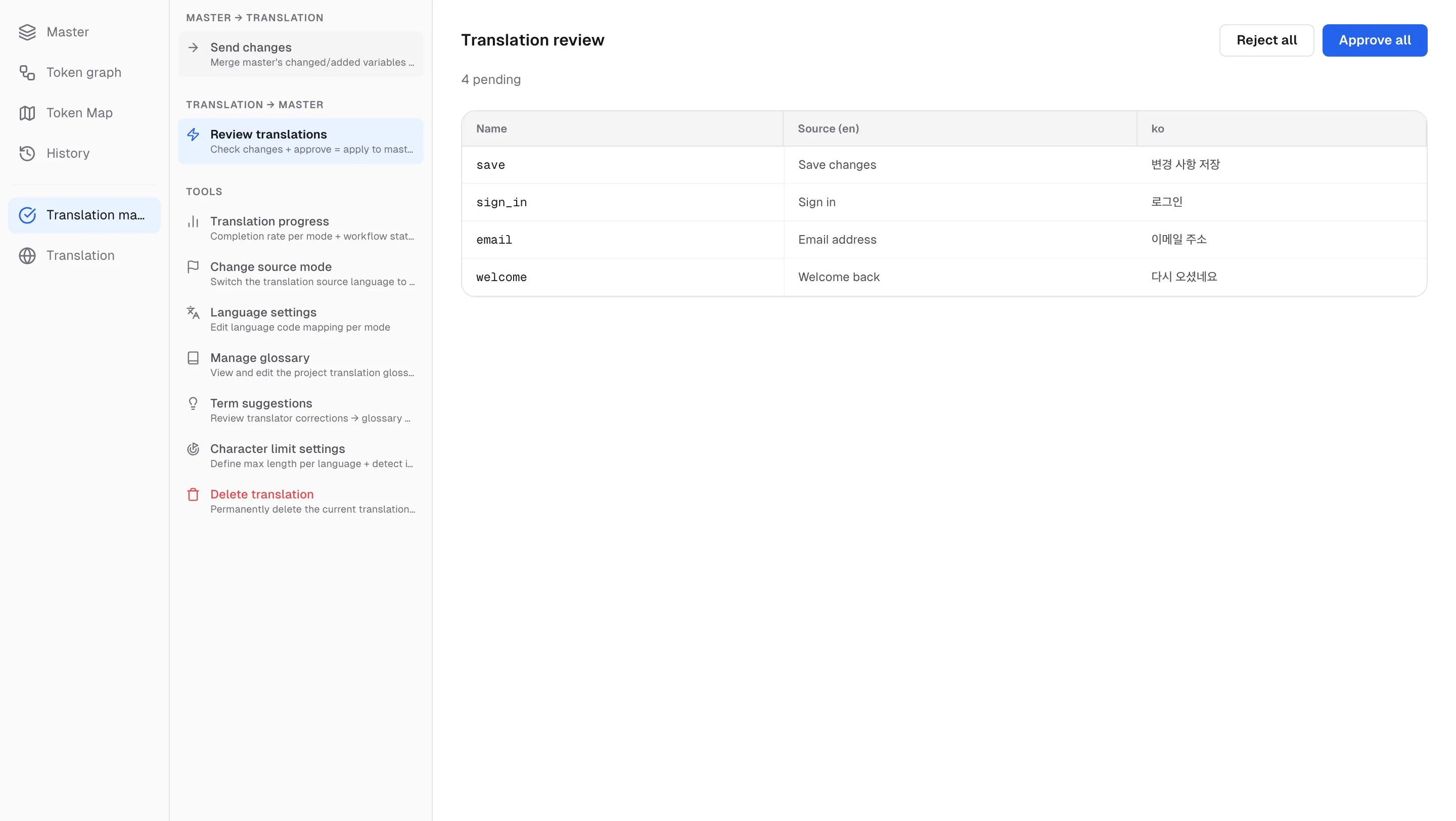
- Approve — applied to the master immediately (an “Applied to master” toast confirms). There is no separate apply step.
- Reject — the cell is marked Review failed (red dot) and returns to Pending for retranslation.
Approved values reach Figma on the next sync.
Glossary — translation that improves with use
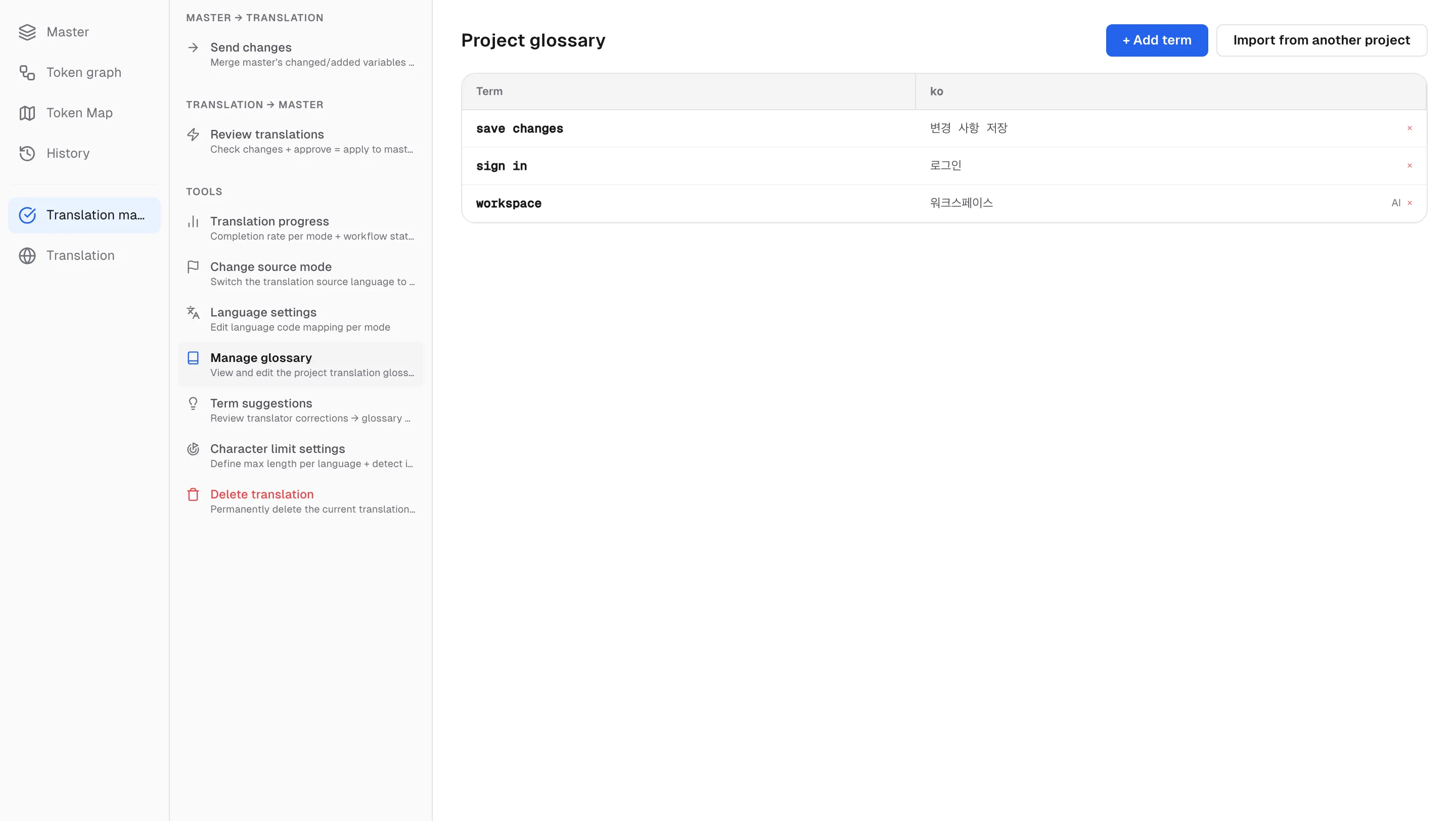
- Manage glossary — add terms to the project glossary directly (+ Add term) or reuse them with Import from another project. Each term shows its origin (AI/user). When you change a term’s translation, Update all translations offers to replace the old wording in cells of in-progress sheets in that language — approved, applied, and in-review cells are left as they are. Skip changes only the glossary.
- Term suggestions — when a translator corrects an AI draft, the correction is captured as a term candidate at the moment the review is approved. Admins review with Add / Dismiss, and accepted terms feed the next AI translation automatically — the more you correct, the better it gets.