Figma Sync
Variables can be edited on both sides — in Figma and in variable Jar. A single Sync button aligns changes from both at once.
Sync
When you press the Sync button in the plugin:
- Your current Figma variables are compared with the master.
- Changed only in Figma → applied to the master.
- Changed only in variable Jar (grid edits, approved translations, …) → applied to Figma immediately.
- Changed on both sides (a conflict) → not applied automatically; left for you to resolve in the web app.
Sync moves variable metadata — scopes and descriptions — along with values. A variable created on the web carries an orange dot next to its name (Not in Figma yet) until the sync that creates it in Figma; that single sync clears both the dot and the — in the Scopes column. There is no need to press Sync twice.
When the sync finishes, a toast at the bottom of Figma summarizes the result:
| Result | Meaning |
|---|---|
| No changes | Both sides were already identical |
| Sync complete, with a count | That many changes were processed without conflicts |
| Conflicts found, with a count | That many conflicts are waiting in the web app |
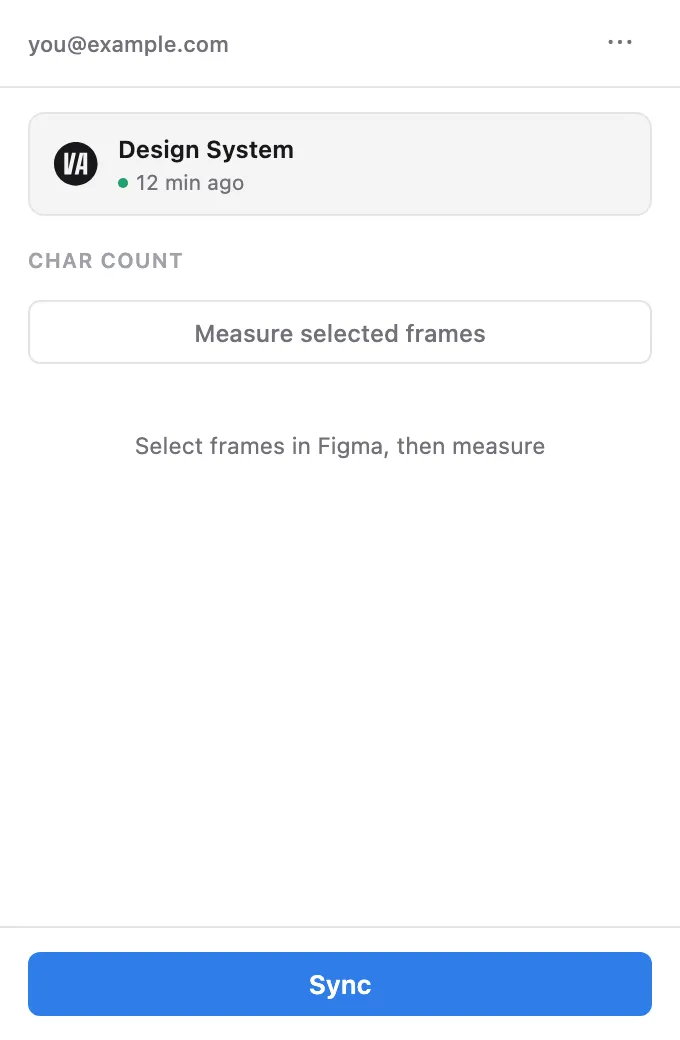
The top of the plugin shows the connected project’s name and when it was last synced.
Resolving conflicts
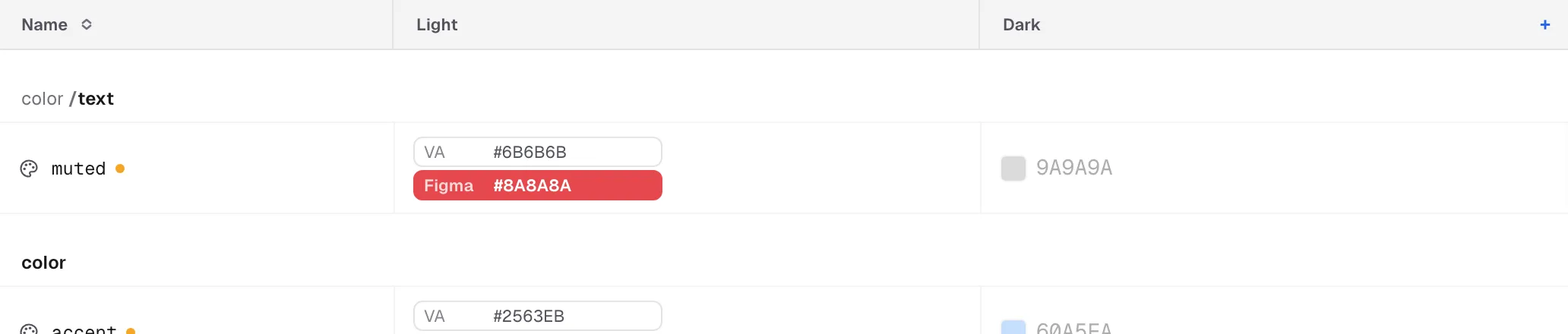
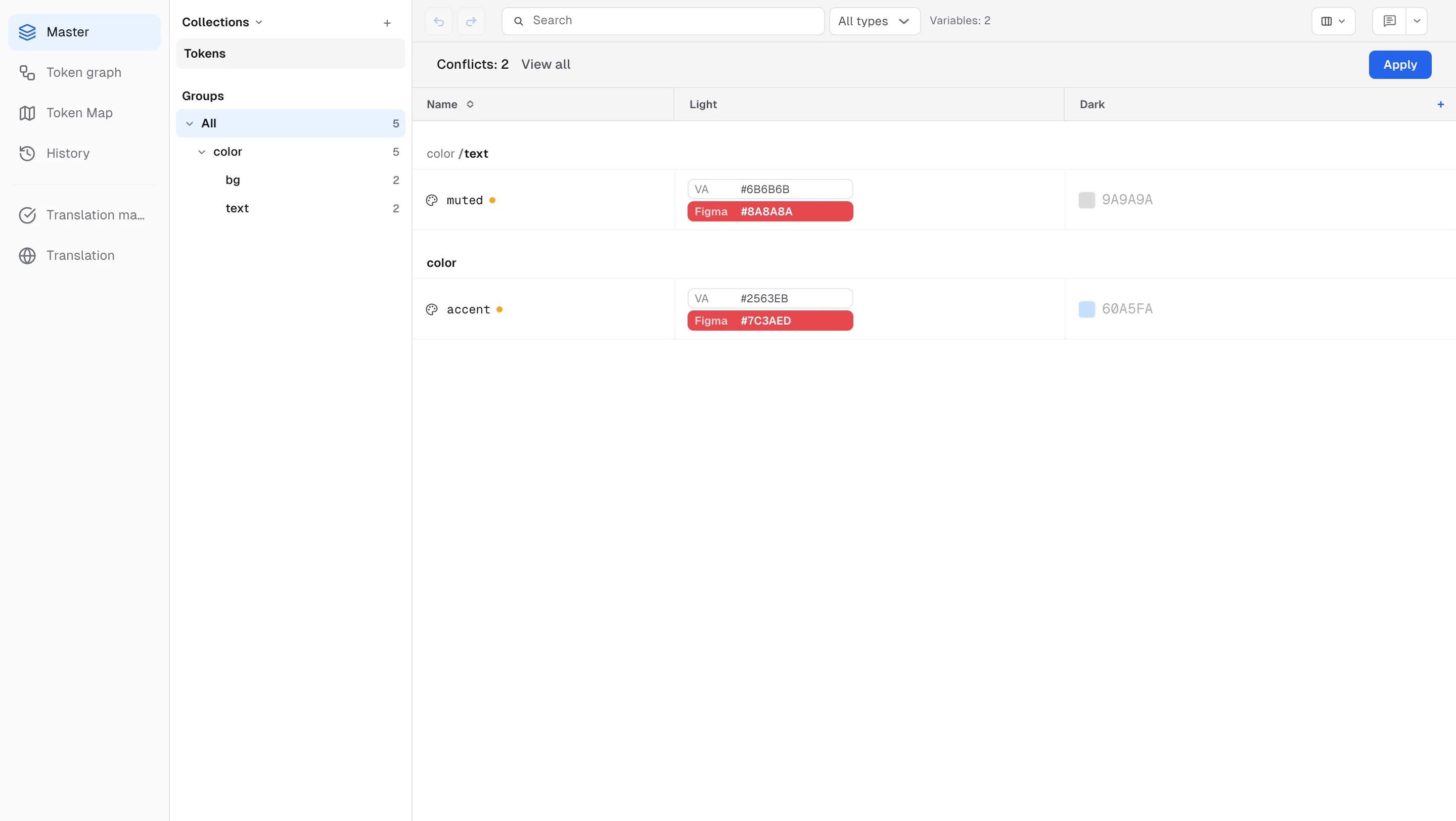
A conflict happens when the same variable is changed differently in Figma and in variable Jar before a sync. Sync stops on that variable without changing anything, so neither side’s value is lost until you choose. You resolve it in variable Jar’s master grid by picking, per variable, either the Figma value or the value on this side.
A Conflicts: N banner appears above the master grid, which then shows only the conflicting rows. Press View all in the banner to see the other rows too, and Conflicts only to narrow it back down.
A conflict cell is a two-line button. The upper line is VA (the variable Jar value), the lower line is Figma (the Figma value), and only the chosen line is filled red. Click the other line to switch. The Figma value is selected to start with, and you can choose per mode (column).
Besides values there are five more kinds of conflict, all chosen per row with the same two-line button:
| Conflict | Where you choose | Initial choice |
|---|---|---|
| Value | Mode columns — VA / Figma per mode | Figma |
| Description | Banner shows Descriptions diverged too · N; pick per row in the Description column | Figma |
| Scopes | Banner shows Scopes diverged too · N; pick per row in the Scopes column | Figma |
| Name | Both sides renamed it differently — the name cell shows the two names on its two lines (only the part that differs; hover for the full path) and you pick the one to keep | Figma |
| Deleted in Figma, edited here | Name cell offers Keep in VA / Delete here too | Keep in VA |
| Deleted here, edited in Figma | Appears as a grey ghost row; name cell offers Keep Figma / Delete in Figma too | Keep Figma |
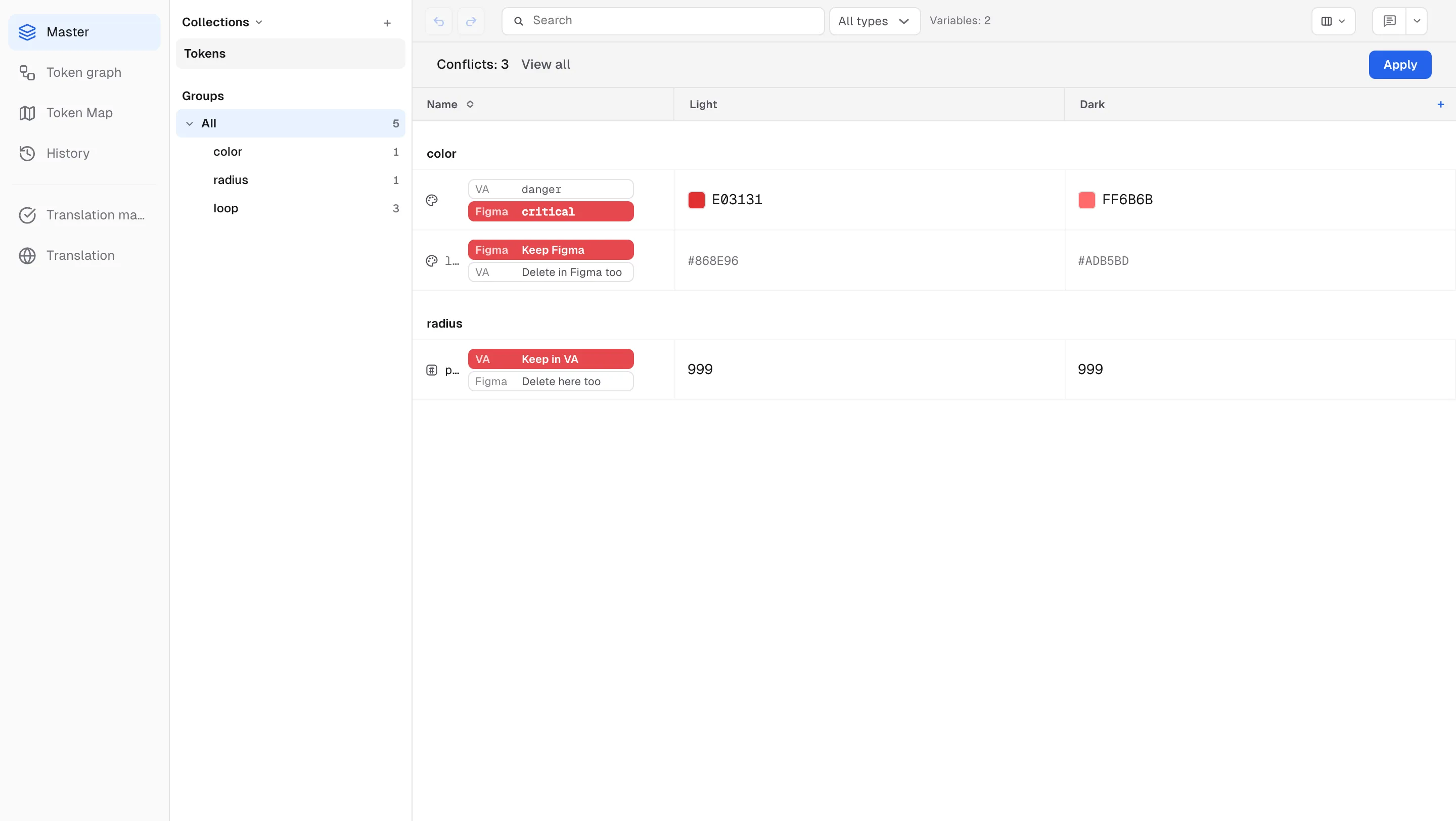
For name and delete conflicts, hovering the name cell explains the situation. A rename conflict, for example, says “Both sides renamed this variable differently. Nothing was changed — pick the name to keep.”; a ghost row says “Deleted in VA but edited in Figma. Nothing was changed — choose whether to restore it with the Figma values or delete it in Figma too.” Delete conflicts default to the keep side because a delete default would erase the edit with a single Apply.
If either side edits a still-conflicting variable again before it is resolved, the conflict stays. The next sync does not overwrite the other side’s edit, and the cell shows the latest value from both sides. Once the two values become equal, the conflict clears on its own.
Opening a conflicting row in the side panel (Details) previews the side chosen in the grid under a Figma preview / VA preview badge (Conflict preview when different axes chose different sides), and the variable can’t be edited in the panel until the conflict is resolved — “Apply makes this value real.”
Press Apply:
- Variables where you kept the Figma value → the master takes the Figma value.
- Variables where you kept the VA value → the next sync applies that value to Figma.
- Delete here too → the variable is deleted from the master as well. Keep Figma → it is restored with the Figma values. Delete in Figma too → the next sync deletes it in Figma.
While conflicts remain, you can’t create a translation sheet or send changes for that collection. The notice N unresolved Figma conflicts appears with a Resolve in master button — on the Send changes screen it reads “Resolve the conflicts first so unconfirmed values aren’t pushed to the translation sheet.” (see Translation workflow). Variables with an unresolved conflict also can’t be moved to another collection.
Renames and moves carry over
- Renames — rename a variable or a group path on the web and sync, and the same variable is simply renamed in Figma. It is not deleted and re-created, so layer bindings stay intact. If both sides renamed it differently, it stops as the name conflict above. If the new name already belongs to another variable in Figma, the rename pauses and the name cell shows a ! mark (Another Figma variable already has this name) — “Renaming paused: another Figma variable already uses the new VA name. To keep the VA name, rename that Figma variable first and Sync again, or choose the Figma side (old name).”
- Move to another collection — variables moved with right-click → Move to collection get an orange dot next to their name (Waiting to move in Figma — created there on the next sync). On the next sync the plugin re-creates them in the new collection and re-links the layers that used them (the plugin shows Relinking layers… N/N). The dot clears in that same sync, and anything that couldn’t be re-linked is flagged on the row. If the target collection in Figma already has a variable with that name, the row shows a Waiting in Figma badge instead and the move stays on hold (“A variable with this name already exists in Figma, so the move is on hold — rename it in Figma, then sync again”). Rename that Figma variable and sync again to continue.
- Order — the order of variables and groups is read from Figma and refreshed on every sync. A row you inserted on the web also takes the position read from Figma at the next sync. Collections are listed in creation order, and the Collections order menu on the sidebar’s Collections header lets you choose Creation order / Name (A→Z) per project. A collection order you rearranged in Figma’s panel can’t be read by plugins, so it isn’t imported. There is no drag-to-reorder on the web.
File linking
To sync, first link the Figma file to a project.
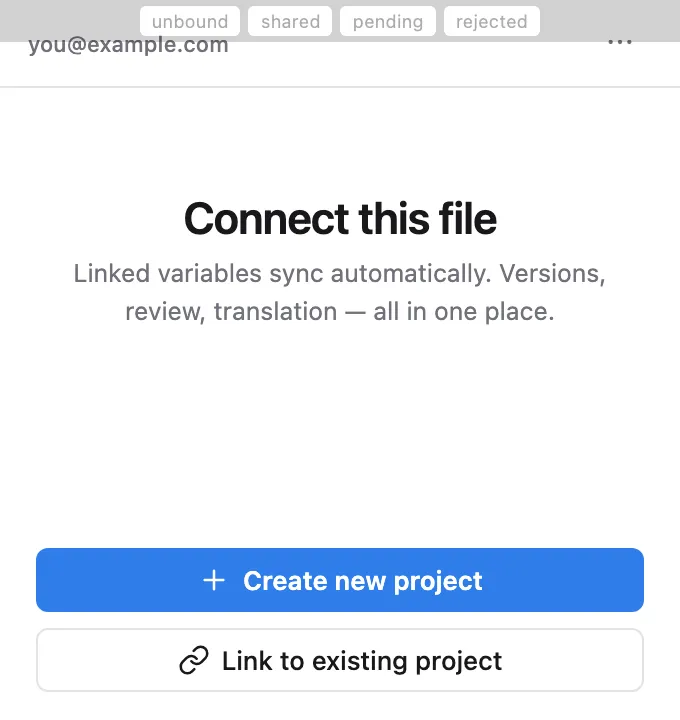
- Creating a link — open the plugin in an unlinked file and the Connect this file screen appears. Choose Create new project (all variables in the file upload automatically) or Link to existing project.
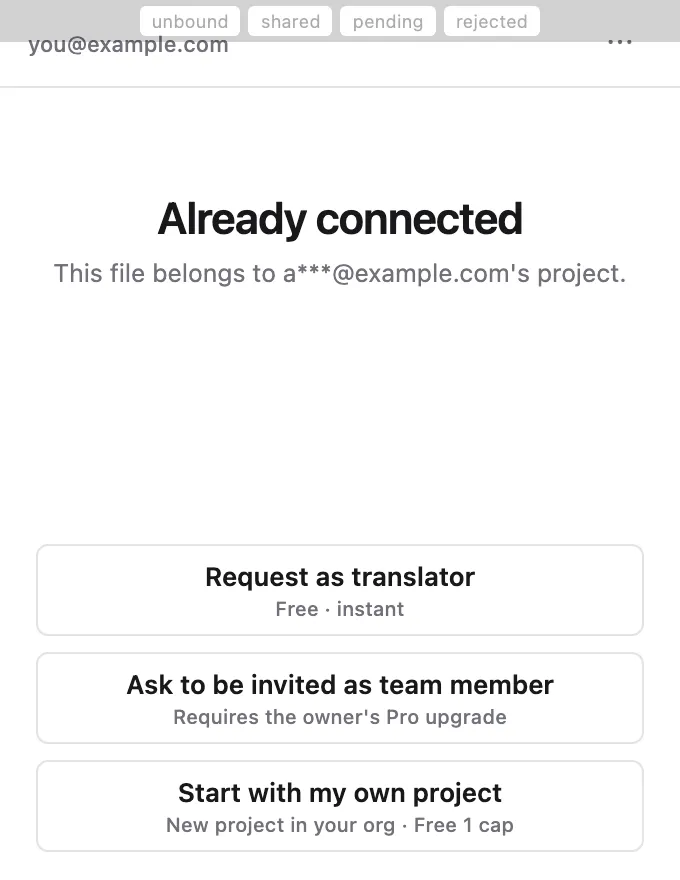
- Someone else’s file — if the file is already linked to another person’s project, choose Request as translator (free) / Ask to be invited as team member / Start with my own project. Owners and team members approve requests on the Members page (see Team & roles).
- There is no unlink — the plugin has no disconnect feature; a link is removed only when its project is permanently deleted (from the trash, or automatically 30 days after it was moved there). Uninstalling and reinstalling the plugin doesn’t affect it.
- Project in the trash — if the linked project is moved to the trash, the plugin shows a trash notice instead of syncing. The workspace owner can restore it from the web app; others who had access to the project are asked to contact the owner. The link is kept, so after a restore the file reconnects as before. While the project is in the trash, people in the same workspace can’t link the file to another project.
- Duplicating a file — links are per Figma file, so a duplicate starts as a new, unlinked file. Start again from Connect this file there.