Token Graph & Token Map
Tokens reference each other — a semantic color points at a primitive, a component token points at the semantic one. variable Jar shows those references in two views: the Token graph answers “if I change this token, what else changes?”, and the Token Map lays the whole project out as one picture.
Opening the graph
- Open a project and pick the Token graph tab in the left rail.
- From the master grid, right-click a variable and choose View references — the graph opens with that token already selected.
- The view is split in two: a level tree on top and a summary view below. Drag the divider to resize; double-click it to return to automatic sizing.
Levels and color lenses
The tree sorts every token by how far it is from a direct value.
- Level 0 holds primitive values — tokens that reference nothing. Level 1 references Level 0, Level 2 references Level 1, and so on. Each column header shows the level and its token count; hover it to see the type breakdown and whether the column is Primitive value or Reference.
- If nothing references anything, there is a single All tokens column marked No reference relations.
- Tokens are grouped by name prefix. Click a group row to unfold its members; ↔ N on a row counts its connections. Hover a column header to reveal the − / + stepper (Decrease group depth / Increase group depth) that changes how deep the grouping goes in that column — it appears only when the column has nested names (a/b/c).
- Hovering a row lights up its connecting lines and dims the rest.
- Color by in the toolbar paints a state dot in front of each token: None, Not in Figma (tokens created on the web that haven’t reached Figma yet), or Scopes. Column headers then show count chips (a color dot and a number; hover for the name) — for Scopes, one each for scoped · all · hidden · uncollected; for Not in Figma, one chip with the count (see Variable metadata).
The impact summary
Click any token and a summary panel appears at the bottom right.
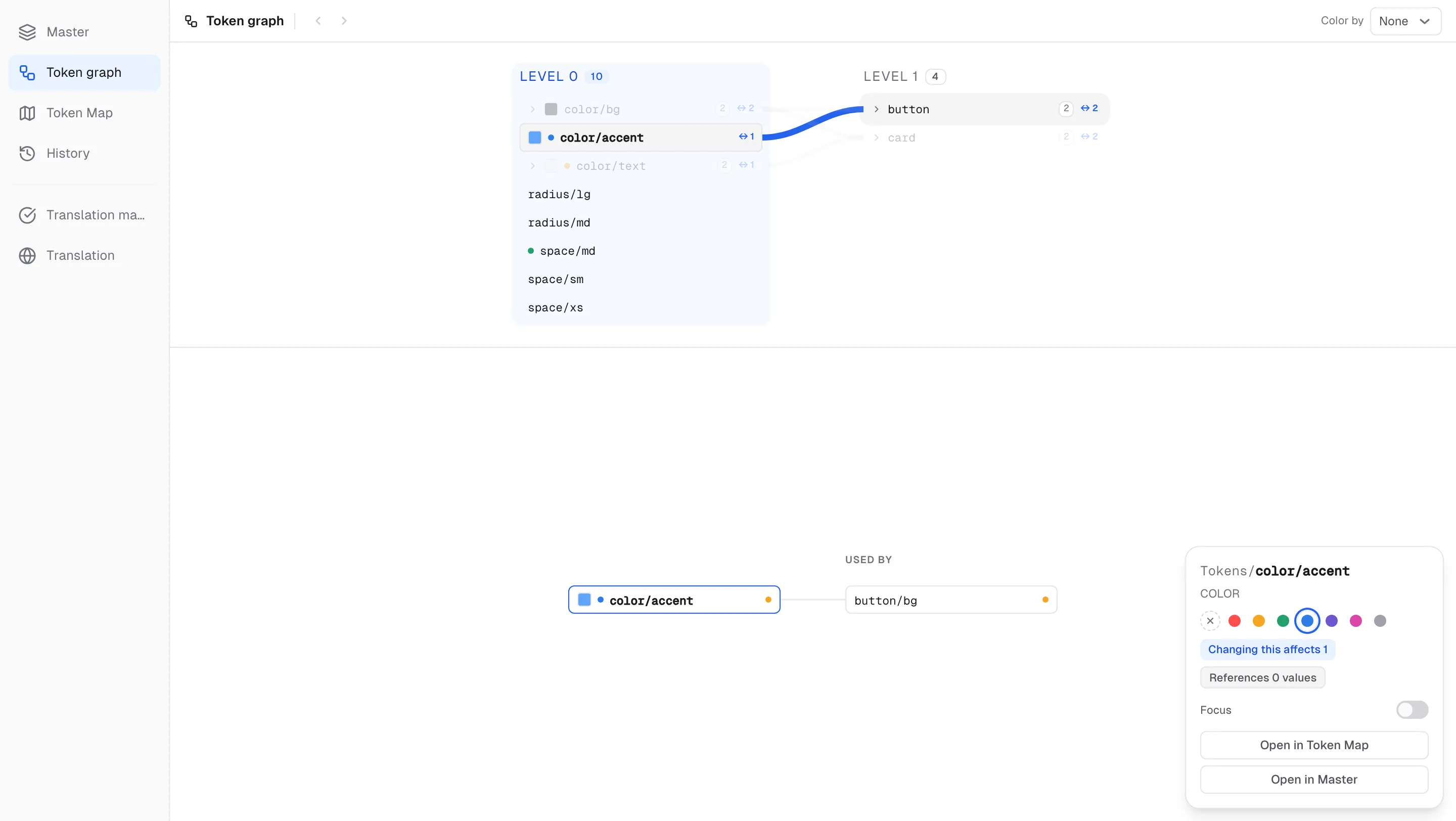
- Changing this affects N — how many tokens use this one, following the chain all the way down. This is the number to check before you edit a value.
- References N values — how many source tokens this value comes from, direct references and their sources.
- The summary view below the tree draws the chain around the selected token: References on the left, Used by on the right, with the token in the middle. Click a token in the chain to highlight only its own path; click it again to clear the highlight. A token with no relations shows This token has no references.
- Focus switch: when on, clicking a token in the chain re-centers the view on it and hides unrelated tokens. When off, a click only highlights.
- Tag dots in the panel mark the token with a color while you explore — the same tags you see in the grid’s Tag column.
- Hover the divider and click the Collapse summary handle to fold the summary view into a slim Summary bar; click the bar (Expand summary) to bring it back. The panel for the selected token stays either way.
Navigating and jumping
- The ‹ / › buttons next to the title move through the tokens you have viewed, like browser back and forward. The keyboard shortcuts are [ (Previously viewed token) and ] (Next token); they are ignored while you type in a field.
- Drag empty space in the summary view to pan; the wheel pans too. Double-click empty space to snap back to center, or press the Center button that appears at the bottom left once you have panned.
- Open in Master opens the master grid with this token selected. A Back to Token Graph toast waits on the grid so you can return in one click. Cmd+click opens it in a new window.
- Open in Token Map jumps to the map with the same token selected; the map’s Open in Token Graph brings you back, with a Back to Token Map toast on the graph.
Circular references
An alias chain that comes back to itself has no value to resolve. variable Jar keeps such chains from forming, and shows the ones it inherits.
- In the grid, an alias that would close a loop is rejected in the picker with Would create a circular reference, and a paste that would create one skips those cells: N cells skipped (circular reference).
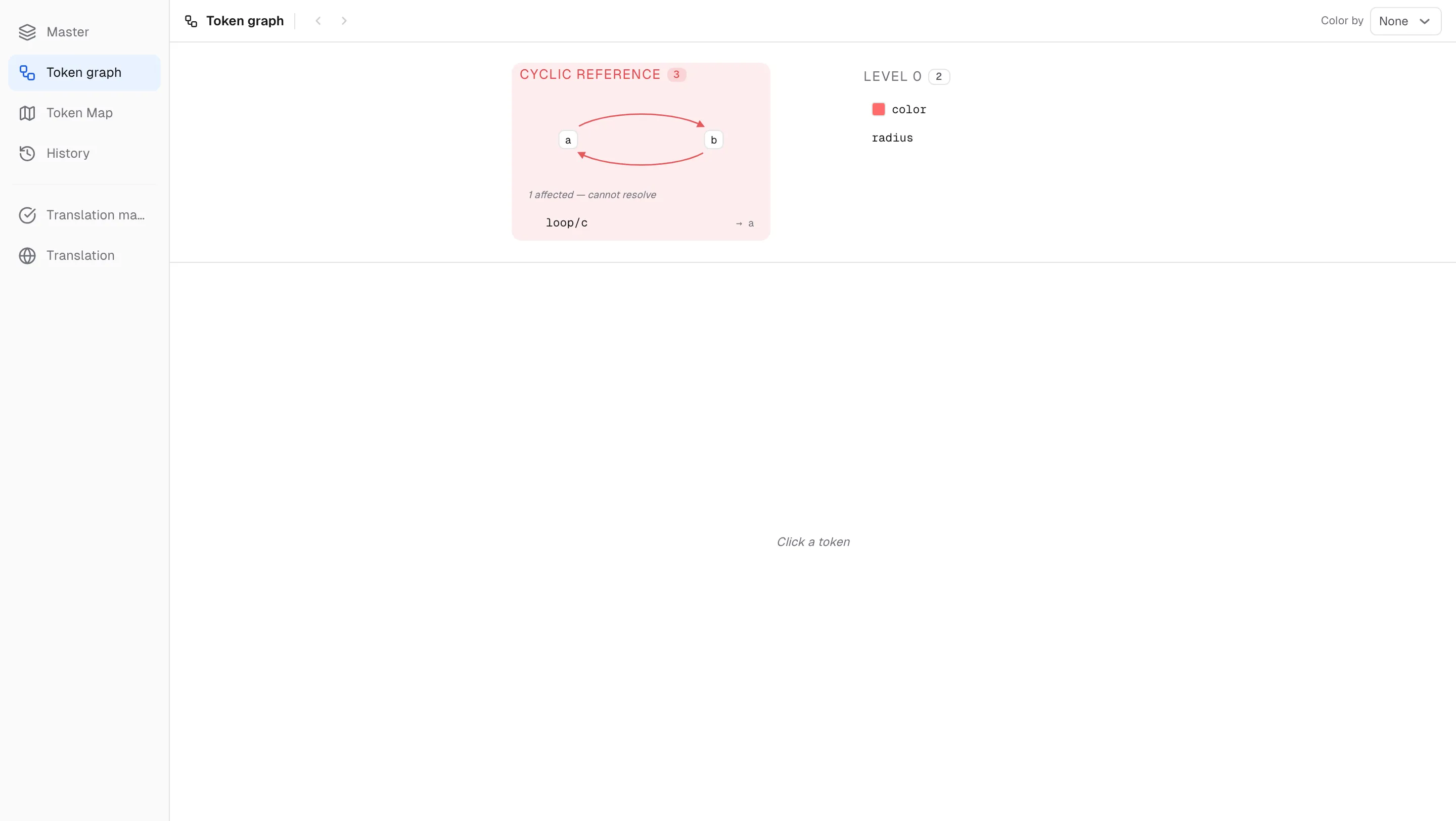
- If a loop already exists, the graph adds a red Cyclic reference column. The loop’s members sit on a ring with arrows running around it; hover the ring to read the path, and click a member to select it.
- Below the ring, N affected — cannot resolve lists the tokens that point into the loop without being part of it — they can’t resolve either.
- To fix it, set a direct value on any member of the loop: Set a direct value on any loop member to resolve the chain.
Token Map
The Token Map tab in the rail shows the whole project at once: every token is a node, every reference a line. Groups start as folded clusters so a large project stays readable.
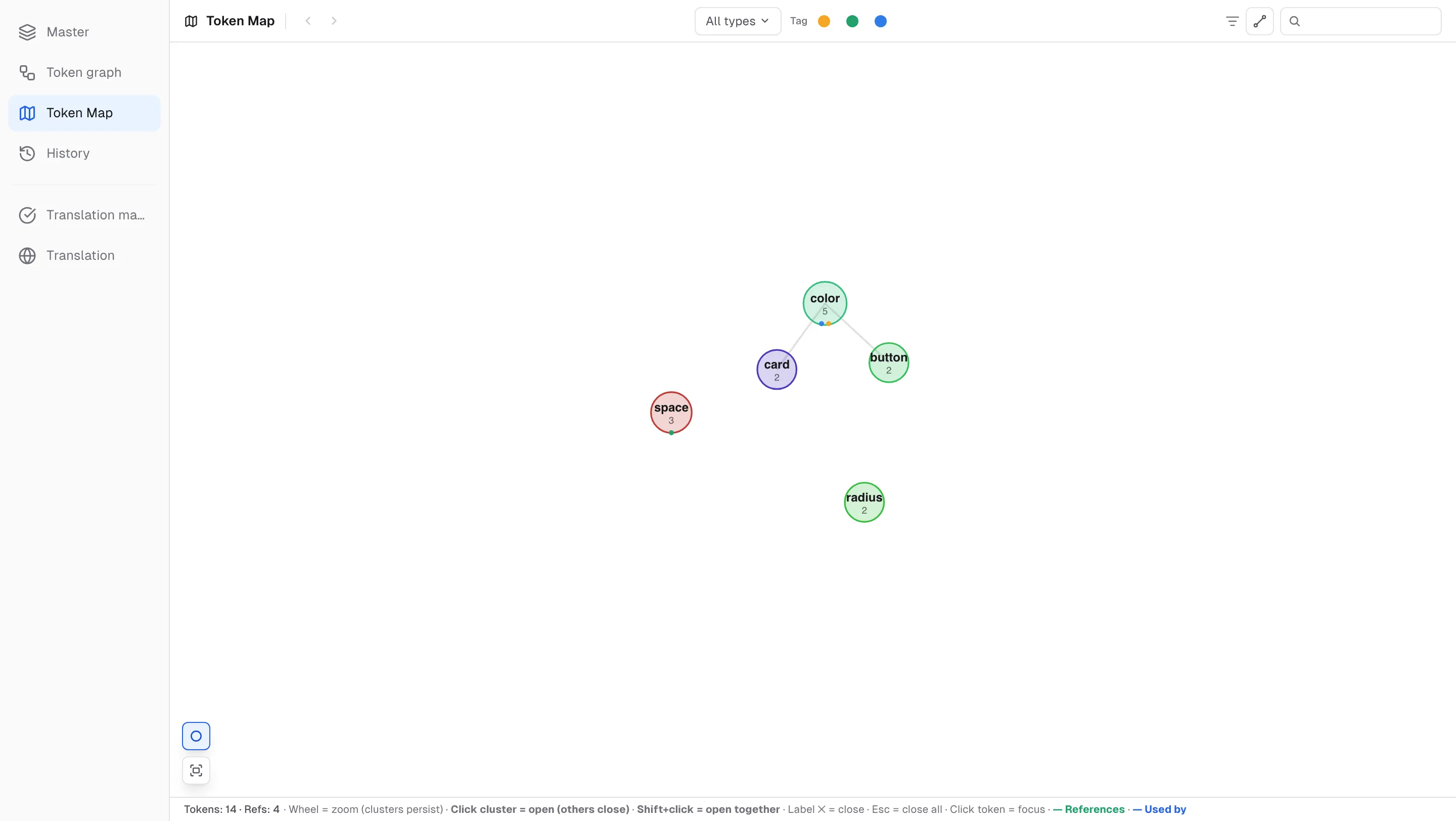
- Wheel zooms. Click a cluster to open it (others close); Shift+click opens several together. Close one with the ✕ on its label, or press Esc to close all. Click a token to focus it.
- The All types dropdown in the header is a multi-select: pick the types to highlight; the last one you unpick returns to all types. Next to it, Tag color dots highlight tokens carrying that tag — only colors used in the project appear.
- Hide unreferenced removes tokens with no connections. The search box (Search — highlight matches) brightens matches and dims everything else without hiding it.
- Bottom-left: Group clusters toggles clustering on and off, and Fit all brings the whole map back into view.
- Click a token and the info panel shows its type, N connections, a Center shortcut, References N and Used by N lists, then Open in Token Graph and Open in Master. Click a cluster to see its group badge, token count, Connected to N and Members.
- The ‹ / › buttons and the [ / ] shortcuts work here the same way as in the graph.