Team & roles
Structure
Signing up creates a personal workspace and a default project automatically. The workspace is the team unit; projects inside it are what link to Figma files.
Owners and team members can rename a workspace on the sidebar’s Settings page, and owners can also delete a workspace there. Personal workspaces can’t be deleted. Deleting a workspace permanently deletes all of its projects right away, including those in the trash.
The four roles
| Role | Scope | What they can do | Counts as a paid seat |
|---|---|---|---|
| Owner | Workspace | Everything — including project deletion and billing | No |
| Team member | Workspace | Manage all projects, members, and translation review | Yes |
| Editor | Assigned projects | Edit the projects they belong to | Yes |
| Translator | Assigned projects | Translation screens of their projects only | No — unlimited & free |
Pro is billed by the number of paid seats (team members + editors). The owner doesn’t count as a seat, but a Pro subscription always starts at a minimum of 1 seat. Translators are free, no matter how many. The Free plan has no seat charges.
Inviting members
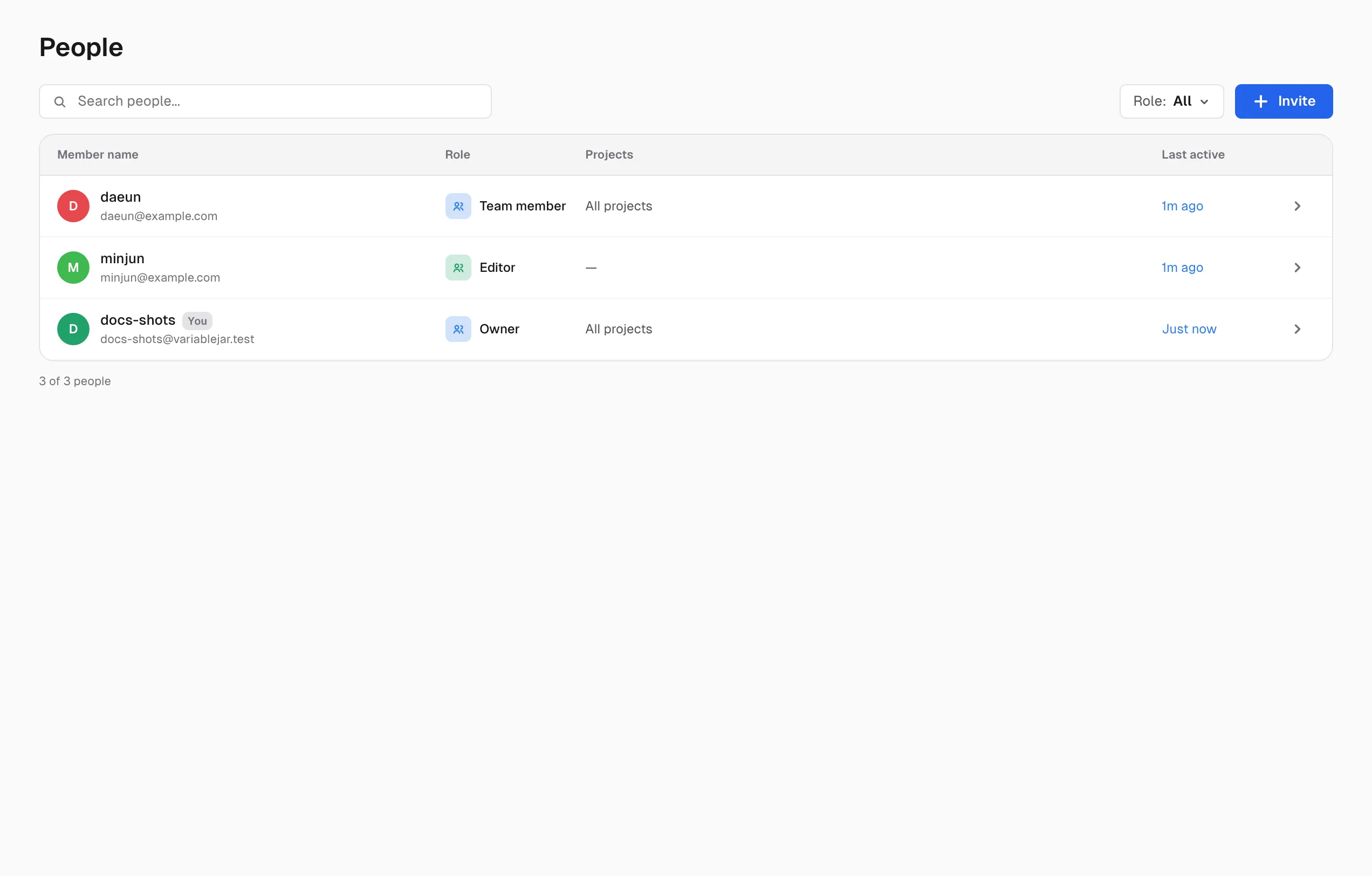
- Press Invite at the top right of the Members page.
- Enter an email and choose a role. Editors need a project. For translators the project is optional — only projects that already have a translation sheet are listed, and Later — add when creating a translation sheet invites them to the workspace alone. You then add them in the last step of the sheet wizard (Translation workflow).
- Registered users receive an invitation card in the notification bell and can Accept / Reject it. Unregistered users get an invitation email and accept from the bell after signing up.
- Invitations expire after 30 days without a response (Expired badge) — Reinvite to send again, or Cancel invitation while it’s pending.
While viewing a project, the Share button at the top opens the same Invite member dialog directly; from the project list, use a card’s ⋯ menu → Share… (owners and team members). If you pick the Team member — Manage all projects role there, a note reminds you: “Admins get access to the entire workspace, not just this project.”
Join requests
Opening the plugin on a Figma file that someone else connected lets you send Request as translator or Ask to be invited as team member (see Figma Sync). Requests appear in the Join requests box at the top of the Members page, where owners/team members pick a role and Approve / Reject.
Managing projects
Manage a project from the ⋯ menu on its card (items vary by role):
- Open — open the project (the Master tab; translators land on the Translation tab).
- Rename / Duplicate — owners and team members. Duplicating a project copies its collections and variables wholesale (the Figma link is not copied).
- Share… — owners and team members. Opens the invite dialog (see Inviting members above).
- Import / Export — bring a token file in as a new collection, or export in six formats (see Export & code). Import is for owners, team members, and editors.
- Properties — project info and API token issuing.
- Move to trash — workspace owner only. The project moves to the trash right away, without a confirmation step, and an Undo button appears at the bottom of the screen for a few seconds (see The trash below).
Create projects with the New project button at the top right of the list, or by linking a file from the plugin.
The trash
Only the workspace owner can move a project to the trash, restore it, or delete it permanently.
- The Trash button at the top of the Projects page opens the trash, with a count when it isn’t empty. Each project shows the day it was moved and the days left until it’s permanently deleted, with Restore and Delete permanently buttons.
- Delete permanently asks you to type the project name to confirm. All variables, collections, and history are permanently deleted, and the Figma file link is removed — this can’t be undone.
- Projects are permanently deleted automatically 30 days after they’re moved to the trash.
- While a project is in the trash, no one can open it — members included. The owner sees “This project is in the trash” with a Restore button instead. Figma sync stops: the plugin shows a trash screen where the owner can choose Restore in web, and others who had access to the project are asked to have the owner restore it (see Figma Sync). The project’s API tokens stop working too.
- Restoring brings member access, the Figma link, and API tokens back as they were. A restored project counts toward your plan’s project limit, just as a new project does. The Undo right after a move is the exception: it usually works even when the workspace is over its limit.
Managing project access
- Select an editor/translator in the member list and grant or revoke access per project with the checkboxes in the Project access section. Team members always have All projects.
- Translators can only be added to projects that have a translation sheet — other projects show No translation sheet and can’t be checked. Next to each assigned project you see the translator’s languages (or All languages). Languages are chosen in the sheet wizard.
- For a translator whose invitation is still pending, Projects to join on acceptance lists the projects reserved for them in the sheet wizard, with their languages. Each can be cancelled with ✕.
- Change roles with the Role dropdown in the member detail (not available for yourself or the owner).
- To leave: a project card’s ⋯ menu → Leave project (workspace membership stays), or Leave workspace in your own member detail.
History — the variable change log
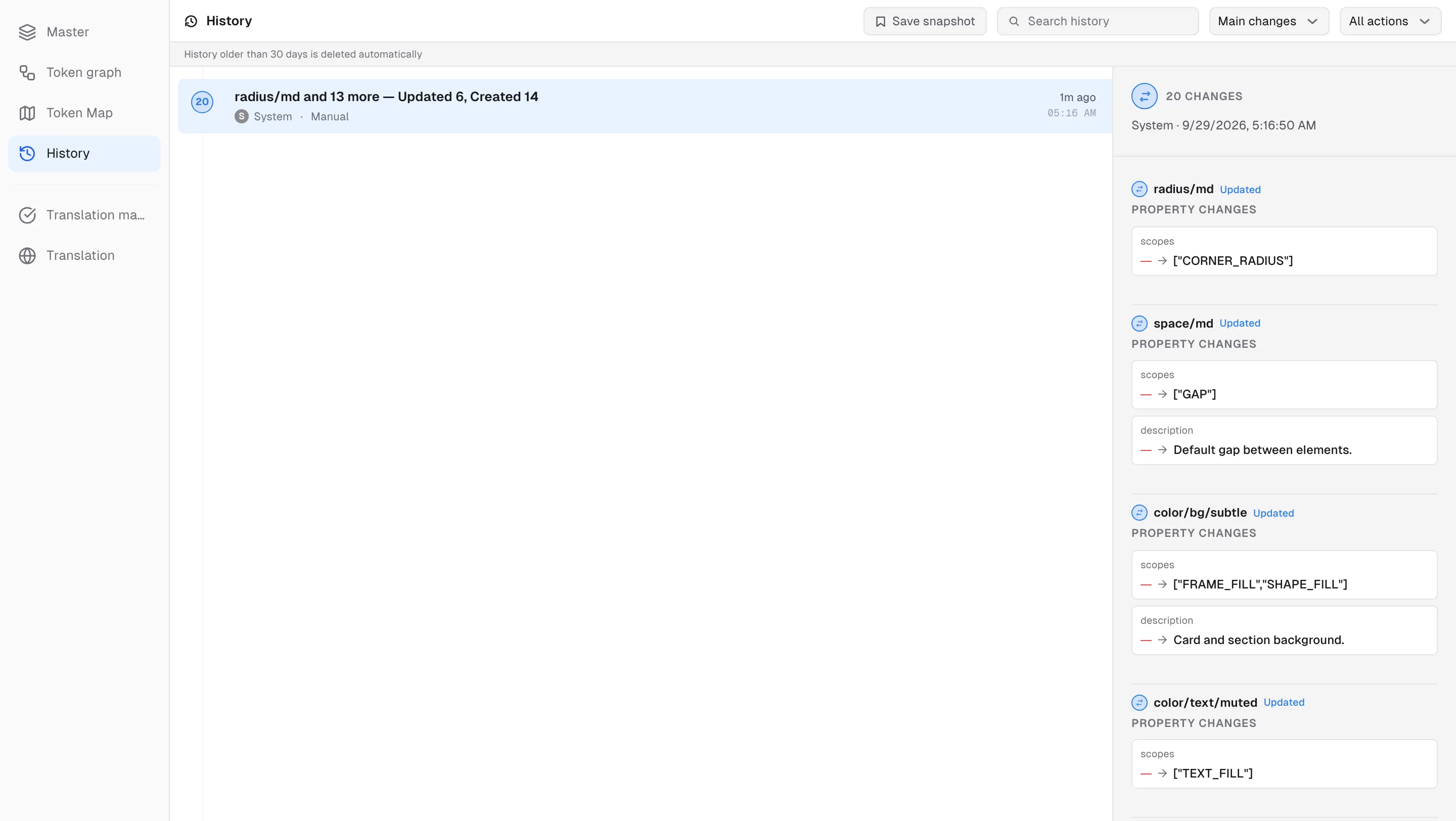
A project’s History tab lists every variable change in order.
- Consecutive changes by the same person are grouped; expand a group to see old → new values per change.
- Each group is labeled with its origin (Manual / AI / Figma sync / Translation / Conflict resolution / Collection move, …). There are two filters — the source filter switches between Main changes (default) and All change sources, and the action filter next to it narrows All actions (default) down to Created, Updated, or Deleted.
- Save snapshot — name and save the current state, then browse versions with changes highlighted via Open as sheet view.
- Retention and snapshot count follow your plan (Free: 30 days · 3 snapshots, Pro: unlimited). Retention is shown at the top of the screen; at the snapshot limit, the Save snapshot button is disabled.
Activity — the workspace event feed
The Activity page is a workspace-level event feed — member sign-ins, accepted invitations, role changes, translation events (sheet creation, review requests, applied translations), project departures, and projects moved to the trash or restored (when others had access to the project). Filter with All / Member / Project / Translation. Detailed value diffs live in the History tab.
Notifications
The bell at the top receives workspace invitations (with built-in Accept/Reject), join requests, translation review requests, and the last 30 days of informational notifications (invitations accepted/rejected, role changes, translation events, project departures, projects moved to the trash or restored). Clicking a notification takes you to the relevant page, if it has one.